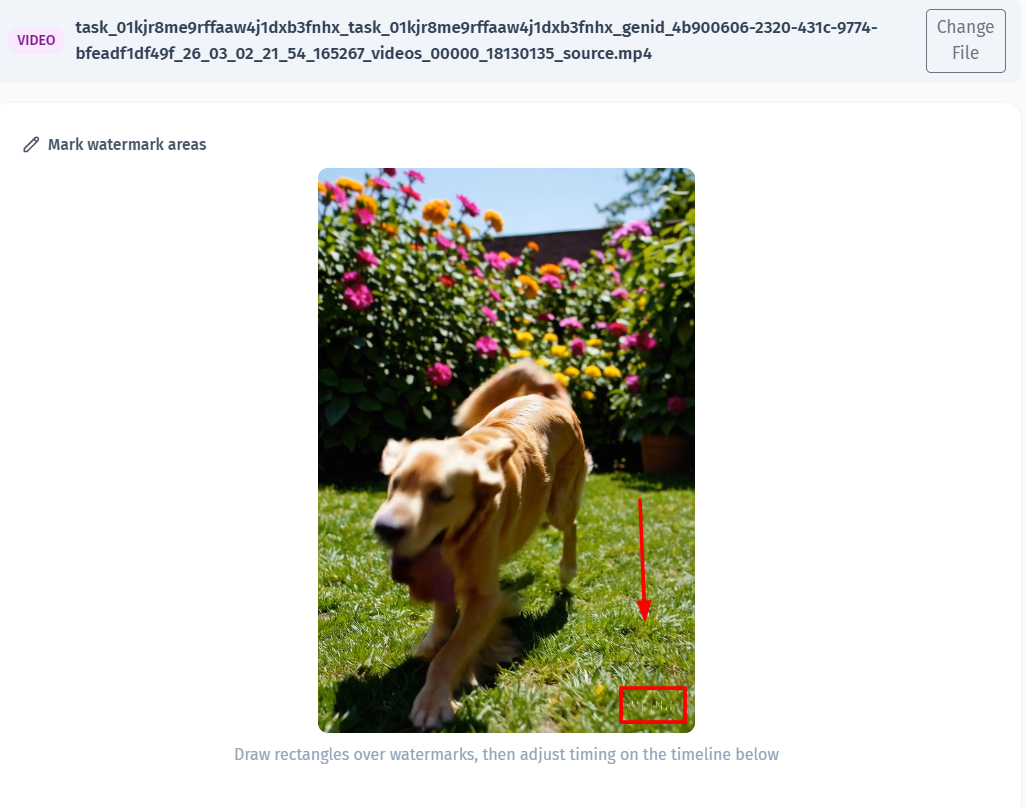
Google Veo adds a faint white "Veo" text watermark in the lower-right corner of generated videos. On top of that, there's an invisible SynthID digital watermark baked into the frames by DeepMind's technology. The visible text is the one most people want gone - it makes your videos look obviously AI-generated, which is a problem if you're using Veo for client work, social media content, or creative projects.
YEB Watermark's removal tool can handle Veo's visible watermark. The process takes a few minutes depending on video length. Here's exactly how to do it.
💧Watermark Tool
Add or remove watermarks from images, PDFs, videos, audio, and documents. Batch processing, templates, steganography, and AI-powered removal.
✓ Add & Remove✓ All File Types✓ Batch Processing✓ AI Removal
If you've generated a video with Google Veo, you've seen it - a faint, semi-transparent "Veo" text sitting in the lower-right corner of every frame. It's white with slight transparency, designed to be noticeable but not completely block the content.
But there's a second watermark you can't see. Google uses DeepMind's SynthID technology to embed a statistical watermark directly into the pixel data across the entire video. This invisible watermark is designed to survive cropping, compression, and color changes. The good news: since it's invisible, it doesn't affect how your video looks. The bad news: it can't be removed by any editing tool because it's woven into the pixel patterns themselves.
What we're removing here is the visible "Veo" text overlay. That's the one that actually matters for presentation.
Step 1: Upload Your Veo Video
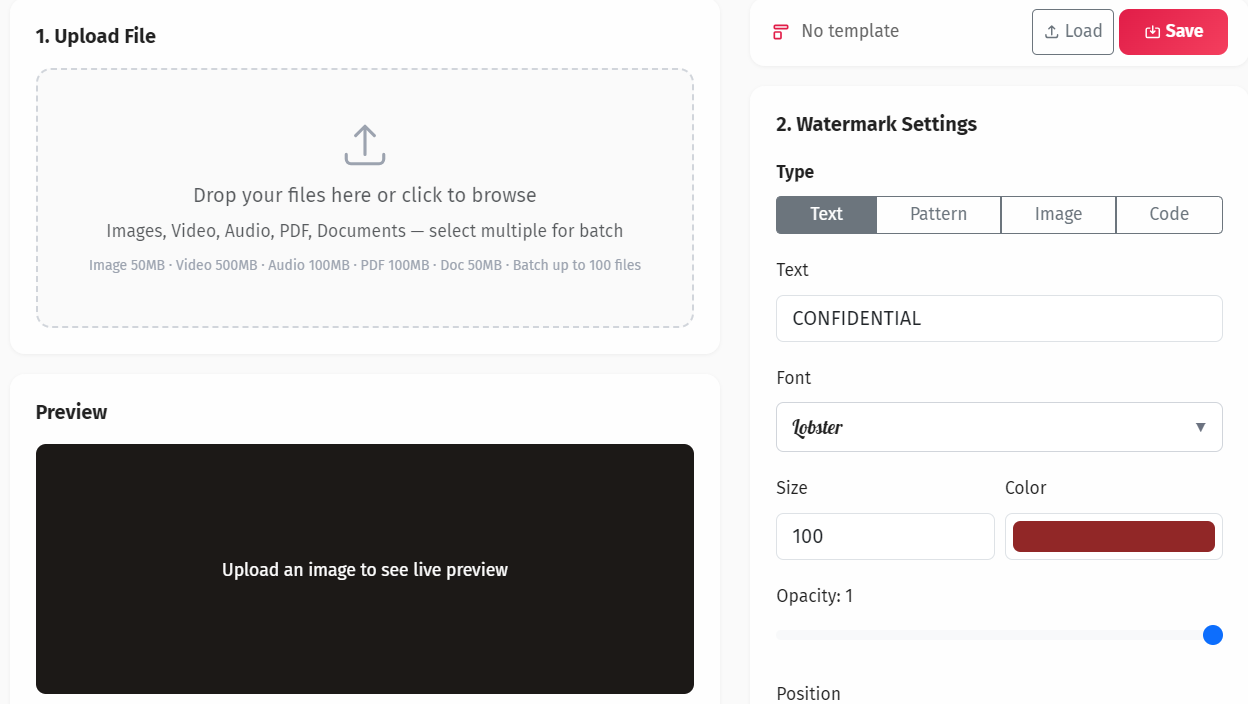
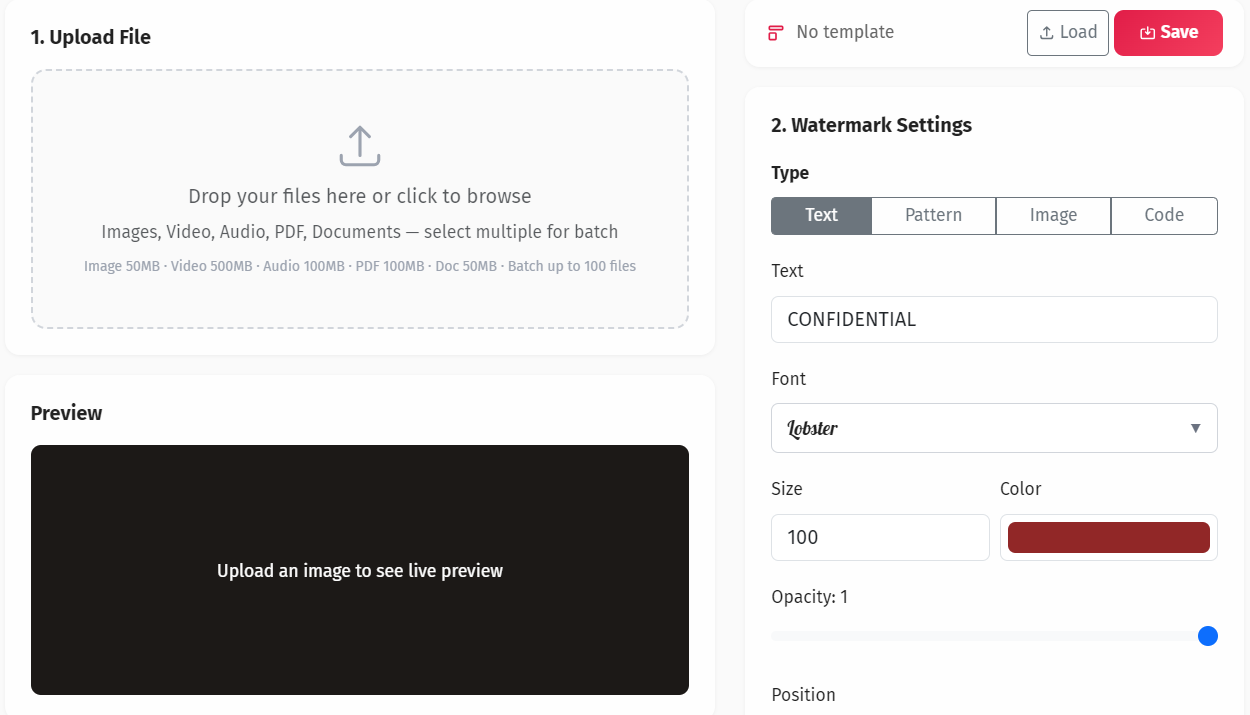
Head to watermark.yeb.to and select Remove Watermark from the main menu. You'll see the upload area where you can drag and drop your video file or click to browse.
Veo typically exports in MP4 format, but the tool accepts MOV, WebM, AVI, and MKV as well. Maximum file size is 500MB. If your Veo export is larger than that, you can trim it first or split it into shorter clips.
Once uploaded, the tool starts analyzing your video. It scans each frame looking for watermark patterns - text overlays, logos, and semi-transparent elements that don't belong to the original content.
Step 2: Select the Watermark Area
After the initial scan, the tool highlights regions where it detected potential watermarks. For Veo videos, it almost always picks up the lower-right text automatically since Veo places it in the same spot every time.
If the auto-detection missed something, or if it selected too much, you can manually adjust. Draw a selection box around the watermark area or resize the existing detection box. There's a sensitivity slider - turning it up catches fainter watermarks, turning it down reduces false positives.
For Veo's watermark specifically, the default sensitivity usually works fine. The text is consistent in position and opacity across all frames, which makes detection straightforward.
Step 3: Choose Removal Method and Download
Now pick how you want the watermark removed. There are three methods:
AI Inpainting - Reconstructs what's behind the watermark using AI. Best when the background has complex textures, patterns, or moving objects. Slower but most accurate.
Frequency Filtering - Targets the specific frequency pattern of the semi-transparent overlay and removes it mathematically. Works great for faint, uniform watermarks like Veo's. Faster than inpainting.
Content-Aware Fill - Samples surrounding pixels and blends them over the watermark area. Good for simple, static backgrounds. Fastest option.
For Veo's faint white text, Frequency Filtering is usually the best choice. The watermark is semi-transparent and uniform, which is exactly what this method handles well. Click "Remove" and wait for processing. Once done, preview the result frame by frame, then download your clean video.
Tips and Limitations
A few things worth knowing before you start:
Background complexity matters. Scenes where the watermark sits over a solid color or simple gradient come out nearly perfect. Scenes with lots of detail, movement, or texture behind the watermark may show slight smoothing where the text was.
Export at maximum quality from Veo first. Compression artifacts make watermark removal harder. The cleaner your source file, the better the result.
SynthID stays. The invisible watermark embedded by DeepMind cannot be removed by any tool - it's designed to be permanent and survive re-encoding. But since nobody can see it, this only matters if someone runs a SynthID detection scan on your file.
Process shorter clips for best results. If you have a long Veo video, consider splitting it into shorter segments and processing each one. This gives you more control over the quality of each section.
Preview before downloading. Always scrub through the preview to check for artifacts, especially in frames where the background behind the watermark changes significantly.